

What you need
- An agent with a tool that requires approval, and its webhook endpoint pointed at your server. Set the agent’s Events URL under Webhook configuration on its form (the
webhookEventsUrlfield on the agent spec). The Wrap an HTTP API lesson builds an approval-gated tool, and Run your first objective shows the approval pause. - Your webhook signing secret in
CADENYA_WEBHOOK_KEY, and your API key inCADENYA_API_KEY. - The SDK for your language, and a public URL to your server (ngrok or a deployed endpoint).
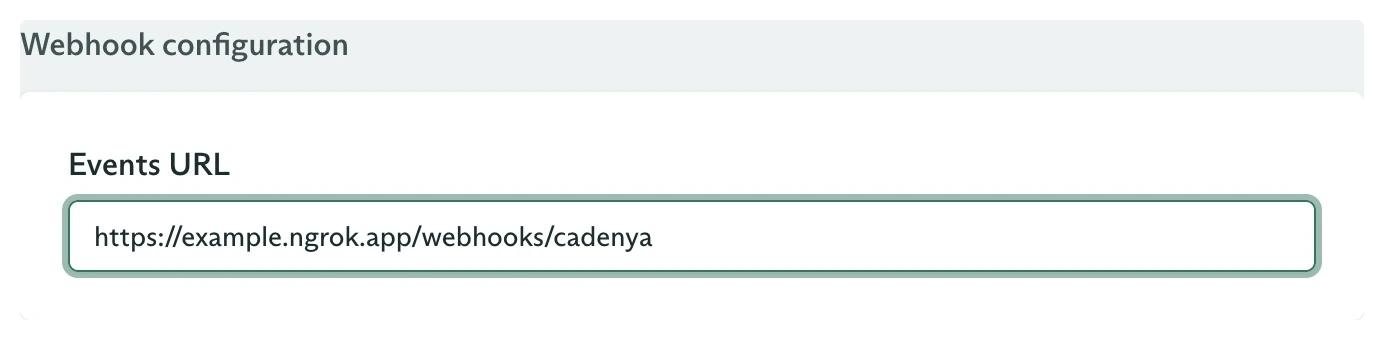
The agent sends every objective event to this endpoint
Step 1: Put routing data in labels
The webhook carries the objective’s labels and external ID, not its customdata. So stash whatever you need to route a notification into labels when you start the objective. Set the external ID to your own key, such as the support ticket.
Labels and the external ID ride in every webhook for the objective. The custom
data object does not. Mirror the routing keys you need into labels, and fetch the objective by ID later if you need the rest.Step 2: Receive and verify the webhook
Your agent’s webhook URL gets a POST for every event. Read the raw body and headers, then hand them tounwrap. It checks the Standard Webhooks signature against your CADENYA_WEBHOOK_KEY and parses the payload. A bad signature throws, so a failed verify never reaches your logic.
Step 3: Find who to ask
Filter to the approval event, then read the routing keys you stored in Step 1. The tool call ID lives on the event payload, and the objective ID is the handle you approve against.event.type
event.type
The event name, such as
objective_event.tool_approval_requested. Branch on it to handle each kind of event.event.data.objective
event.data.objective
The objective’s operation metadata:
id, externalId, labels, plus account and workspace IDs. This is your routing source.event.data.objectiveEvent
event.data.objectiveEvent
The event itself. For an approval, its
data.toolApprovalRequested.toolCallId is the call you decide on.event.data.agent and event.data.agentVariation
event.data.agent and event.data.agentVariation
Resource metadata for the agent and the variation that produced the event, when you want to log or branch on which agent asked.
Step 4: Approve, or deny with steering
This call runs from your reviewer-facing action, a Slack button handler or an approval link, not the webhook handler. Persist theworkspaceId, objectiveId, and toolCallId from Step 3 with the notification (a button value, a signed link) so the action has them when the click arrives. Then send the decision with the SDK. Approve resumes the call as written. Deny hands the agent a memo, which steers it toward a different choice instead of stopping it cold.
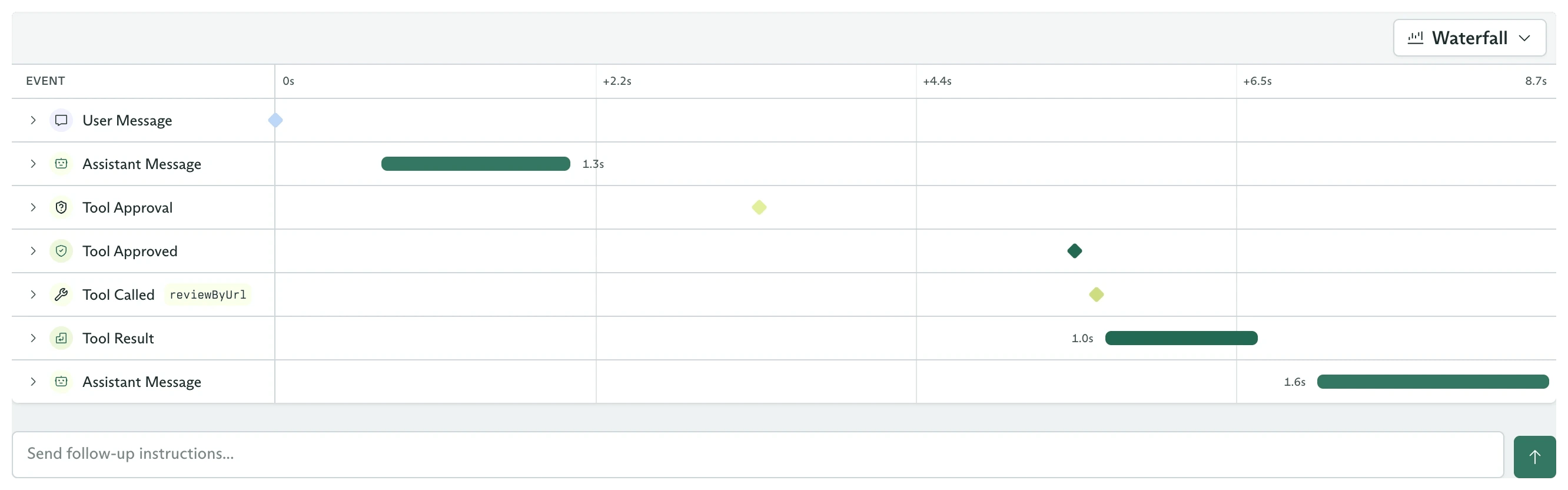
An approved call resumes from the same timeline
A pending approval waits up to 24 hours. If no one approves or denies it in that window, the call times out and fails (it is not auto-approved or auto-denied), and the objective surfaces an error. Notify your reviewer promptly, and handle the timeout the same way you handle any failed run.
What you built
You stood up a handler that verifies a Cadenya webhook and routes the approval to a reviewer using labels you set at create time, plus a decision action that answers with the SDK. SwapnotifyReviewer for a Slack post or an email and you have a working approval loop.
Going further
How objectives work
Every event type that can reach your handler, and the objective lifecycle behind them.
Run your first objective
Where approvals fit in the full objective arc: data, secrets, and structured output.
Email updates from an objective
The same handler, reacting to finish and failure events instead of approvals.