> ## Documentation Index
> Fetch the complete documentation index at: https://cadenya.com/docs/llms.txt
> Use this file to discover all available pages before exploring further.
# Connect an OpenAPI spec
> Turn a hosted OpenAPI specification into a filtered, callable tool set from the dashboard.
This guide connects a public OpenAPI specification, exposes one read-only operation, and verifies that an agent can call it. You configure the tool set in the dashboard, then dispatch the objective from code.
The example uses the Swagger Validator specification. It contains six operations. An include rule keeps `reviewByUrl` available and omits the other five.
## What you need
* A Cadenya workspace.
* A published agent, or permission to create one by following [Create and publish an agent](/docs/guides/configure-a-simple-agent).
* `CADENYA_API_KEY` and `CADENYA_WORKSPACE_ID` for the code examples.
## Create the tool set
Select **Tool Sets**, click **Create Tool Set**, and select **OpenAPI**.
Keep **Specification source** on **URL** and enter:
```text theme={null}
https://validator.swagger.io/validator/openapi.json
```
Expand **Server override**. Set **Base URL override** to:
```text theme={null}
https://validator.swagger.io/validator
```
The specification declares a relative server URL. The override makes the request destination explicit and was used for the live call verified in this guide.
 A URL source is fetched when you create the tool set, after adapter updates, and during its hourly sync. Choose **Upload** instead when the document should stay fixed or cannot be hosted.
Use **Add header** when fetching the specification or calling the API requires authentication. Store credentials as [secrets](/docs/guides/store-and-use-secrets) and reference them as `${SECRET_NAME}` rather than placing a token in the form.
Click **Generate Preview**. Cadenya fetches and parses the specification without saving the tool set. The preview initially finds six operations.
A valid operation needs an `operationId`, or the custom `x-llm-tool-name` extension described below. Preview is the fastest place to catch a missing operation name, an unreachable specification, or an unresolved secret.
Click **Continue**. Under **Include tools**, add this rule:
| Field | Value |
| :--------------- | :------------------- |
| Attribute | **Name** |
| Matcher | **Is** |
| Value | `reviewByUrl` |
| Case sensitivity | **Case insensitive** |
Leave **Exclude tools** empty and keep **Approval requirement** on **No approval required**.
A URL source is fetched when you create the tool set, after adapter updates, and during its hourly sync. Choose **Upload** instead when the document should stay fixed or cannot be hosted.
Use **Add header** when fetching the specification or calling the API requires authentication. Store credentials as [secrets](/docs/guides/store-and-use-secrets) and reference them as `${SECRET_NAME}` rather than placing a token in the form.
Click **Generate Preview**. Cadenya fetches and parses the specification without saving the tool set. The preview initially finds six operations.
A valid operation needs an `operationId`, or the custom `x-llm-tool-name` extension described below. Preview is the fastest place to catch a missing operation name, an unreachable specification, or an unresolved secret.
Click **Continue**. Under **Include tools**, add this rule:
| Field | Value |
| :--------------- | :------------------- |
| Attribute | **Name** |
| Matcher | **Is** |
| Value | `reviewByUrl` |
| Case sensitivity | **Case insensitive** |
Leave **Exclude tools** empty and keep **Approval requirement** on **No approval required**.
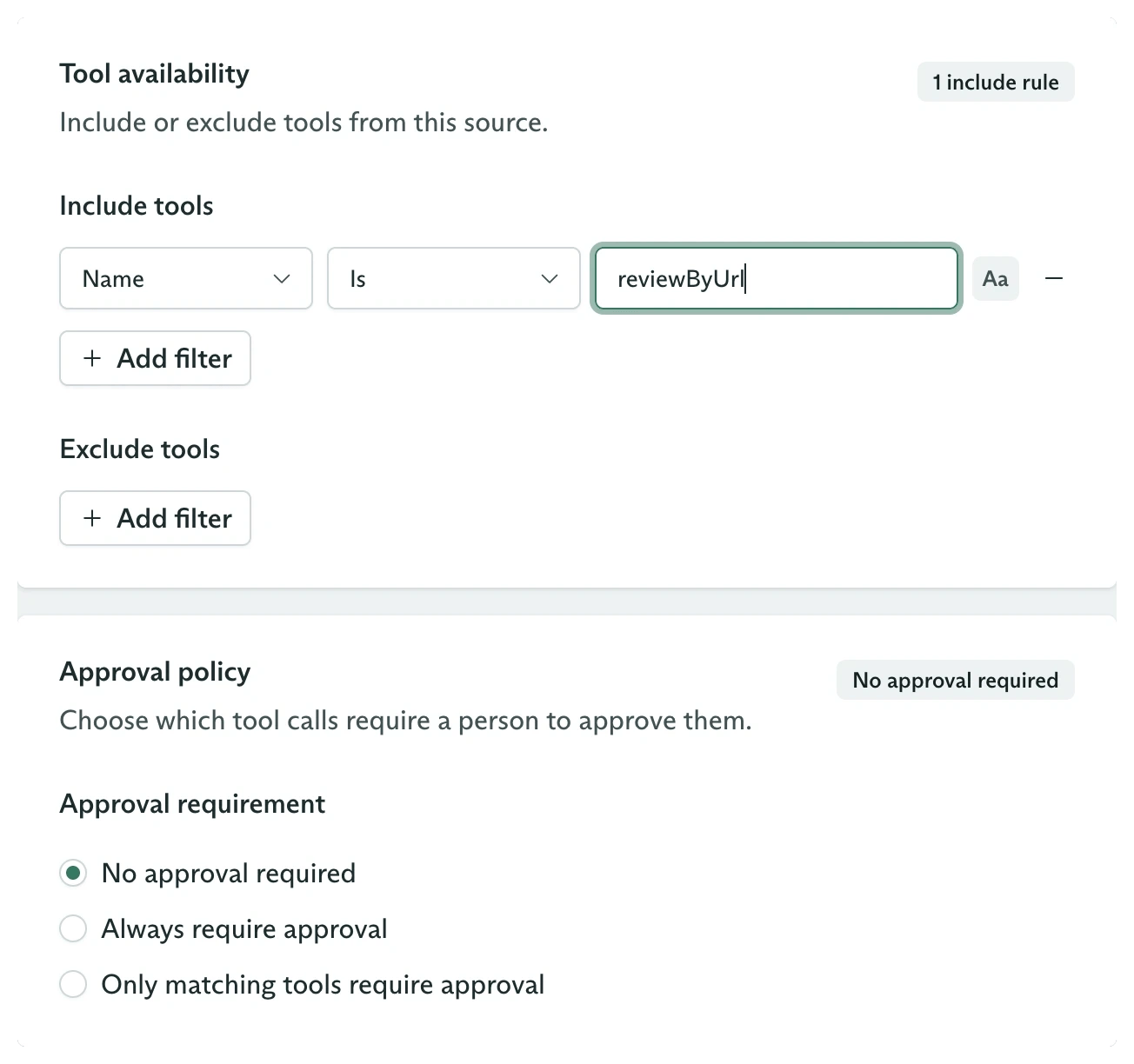 Include filters run first. Exclude filters then remove operations from that included set. Matching is evaluated against an operation's name, title, or description, depending on the selected attribute.
Regenerate the preview. It now reports six tools found, one available, and five omitted.
Include filters run first. Exclude filters then remove operations from that included set. Matching is evaluated against an operation's name, title, or description, depending on the selected attribute.
Regenerate the preview. It now reports six tools found, one available, and five omitted.
 Omitted tools remain visible for audit, but agents never receive them.
Click **Continue** and enter:
| Field | Value |
| :---------- | :---------------------------------------------------------------------- |
| Name | `OpenAPI validator` |
| Description | `Validate public OpenAPI documents with a read-only Swagger operation.` |
| External ID | `openapi-validator` |
Review the configuration, then click **Create Tool Set**. Cadenya saves the resource and starts its first sync.
## Verify the sync
Open the new tool set. The **Tools** tab should show:
* **1 Available**
* **5 Omitted**
* **6 Total**
Select `reviewByUrl` to inspect the description and generated parameter schema. The `url` argument is required.
Omitted tools remain visible for audit, but agents never receive them.
Click **Continue** and enter:
| Field | Value |
| :---------- | :---------------------------------------------------------------------- |
| Name | `OpenAPI validator` |
| Description | `Validate public OpenAPI documents with a read-only Swagger operation.` |
| External ID | `openapi-validator` |
Review the configuration, then click **Create Tool Set**. Cadenya saves the resource and starts its first sync.
## Verify the sync
Open the new tool set. The **Tools** tab should show:
* **1 Available**
* **5 Omitted**
* **6 Total**
Select `reviewByUrl` to inspect the description and generated parameter schema. The `url` argument is required.
 Open **Sync Events** when setup code or an operator needs to confirm that discovery finished. A completed sync reports all six operations it processed, even though filters leave only one available.
The **OpenAPI Spec** tab shows the exact JSON document Cadenya consumed:
Open **Sync Events** when setup code or an operator needs to confirm that discovery finished. A completed sync reports all six operations it processed, even though filters leave only one available.
The **OpenAPI Spec** tab shows the exact JSON document Cadenya consumed:
 ## Assign the tool set to an agent
Open an agent variation and add `OpenAPI validator` under **Assignments**. Use a system prompt that tells the model when to call the operation:
```text theme={null}
You validate OpenAPI documents. Call reviewByUrl with the URL from the user.
After the result, return a compact JSON object with valid and message fields.
An empty schemaValidationMessages array means valid is true.
```
Publish the agent after saving the assignment. Published agents accept objectives; draft agents do not.
## Dispatch a validation objective
Set `CADENYA_AGENT_ID` to the published agent's ID. Both examples ask the agent to validate the public Petstore specification.
```typescript TypeScript theme={null}
import Cadenya from '@cadenya/cadenya';
const client = new Cadenya({ apiKey: process.env['CADENYA_API_KEY'] });
const workspaceId = process.env['CADENYA_WORKSPACE_ID']!;
const agentId = process.env['CADENYA_AGENT_ID']!;
const objective = await client.objectives.create({
workspaceId,
agentId,
systemPromptData: {},
firstUserMessage:
'Validate https://petstore3.swagger.io/api/v3/openapi.json.',
});
console.log(objective.metadata.id);
```
```bash cURL theme={null}
curl "https://api.cadenya.com/v1/workspaces/${CADENYA_WORKSPACE_ID}/objectives" \
-H "Authorization: Bearer ${CADENYA_API_KEY}" \
-H "Content-Type: application/json" \
-d "{
\"agentId\": \"${CADENYA_AGENT_ID}\",
\"systemPromptData\": {},
\"firstUserMessage\": \"Validate https://petstore3.swagger.io/api/v3/openapi.json.\"
}"
```
The vetted run produced this sequence:
```text theme={null}
userMessage → assistantMessage → toolCalled → toolResult → assistantMessage
```
The model called `reviewByUrl` once with the Petstore URL. The validator returned an empty `schemaValidationMessages` array, and the agent replied:
```json theme={null}
{
"valid": true,
"message": "OpenAPI document is valid."
}
```
## Create the same configuration from the SDK
Use this when tool set provisioning belongs in deployment code. The API returns before the asynchronous sync finishes, so production setup code should read [tool set events](/docs/guides/sdk/tool-sets) before assigning the set.
```typescript theme={null}
const toolSet = await client.toolSets.create({
workspaceId,
metadata: {
name: 'OpenAPI validator',
externalId: 'openapi-validator',
},
spec: {
description:
'Validate public OpenAPI documents with a read-only Swagger operation.',
adapter: {
type: 'openapi',
openapi: {
type: 'url',
url: 'https://validator.swagger.io/validator/openapi.json',
baseUrl: 'https://validator.swagger.io/validator',
includeTools: {
operator: 'OPERATOR_AND',
filters: [
{
attribute: 'ATTRIBUTE_NAME',
matcher: {
type: 'exact',
exact: 'reviewByUrl',
caseSensitive: false,
},
},
],
},
},
},
},
});
```
## Other OpenAPI configurations
### Upload a fixed specification
Choose **Upload** in the dashboard when the specification should not change automatically. Through the API, create and complete an [upload](/docs/api-reference/uploadservice/create-an-upload), then set the OpenAPI source to:
```json theme={null}
{
"type": "uploadId",
"uploadId": "upload_01..."
}
```
Uploaded documents do not receive hourly source refreshes. Updating the adapter to a new upload starts another sync.
### Route calls to a different server
Open **Server override** in the connection step:
* **Base URL override** sends every operation to one explicit base URL. It takes precedence over the specification's `servers` array.
* **Server name** selects a named entry from the `servers` array. It is ignored when a base URL override is present.
* Leaving both empty uses the server resolved from the specification.
### Improve model-facing names
Add these operation extensions when the provider's developer-facing names are poor model instructions:
* `x-llm-tool-name` overrides the `operationId` as the callable tool name.
* `x-llm-tool-description` overrides the operation description and summary.
An operation without either `operationId` or `x-llm-tool-name` is skipped.
You now have a filtered OpenAPI tool set whose UI configuration, six-operation sync, generated schema, and live `reviewByUrl` call have all been verified.
## Next steps
Build the agent that receives this tool set.
Combine include, exclude, approval, and progressive discovery controls.
Supply authorization headers without exposing tokens in configuration.
Manage sync events, assignments, updates, and archival from code.
## Assign the tool set to an agent
Open an agent variation and add `OpenAPI validator` under **Assignments**. Use a system prompt that tells the model when to call the operation:
```text theme={null}
You validate OpenAPI documents. Call reviewByUrl with the URL from the user.
After the result, return a compact JSON object with valid and message fields.
An empty schemaValidationMessages array means valid is true.
```
Publish the agent after saving the assignment. Published agents accept objectives; draft agents do not.
## Dispatch a validation objective
Set `CADENYA_AGENT_ID` to the published agent's ID. Both examples ask the agent to validate the public Petstore specification.
```typescript TypeScript theme={null}
import Cadenya from '@cadenya/cadenya';
const client = new Cadenya({ apiKey: process.env['CADENYA_API_KEY'] });
const workspaceId = process.env['CADENYA_WORKSPACE_ID']!;
const agentId = process.env['CADENYA_AGENT_ID']!;
const objective = await client.objectives.create({
workspaceId,
agentId,
systemPromptData: {},
firstUserMessage:
'Validate https://petstore3.swagger.io/api/v3/openapi.json.',
});
console.log(objective.metadata.id);
```
```bash cURL theme={null}
curl "https://api.cadenya.com/v1/workspaces/${CADENYA_WORKSPACE_ID}/objectives" \
-H "Authorization: Bearer ${CADENYA_API_KEY}" \
-H "Content-Type: application/json" \
-d "{
\"agentId\": \"${CADENYA_AGENT_ID}\",
\"systemPromptData\": {},
\"firstUserMessage\": \"Validate https://petstore3.swagger.io/api/v3/openapi.json.\"
}"
```
The vetted run produced this sequence:
```text theme={null}
userMessage → assistantMessage → toolCalled → toolResult → assistantMessage
```
The model called `reviewByUrl` once with the Petstore URL. The validator returned an empty `schemaValidationMessages` array, and the agent replied:
```json theme={null}
{
"valid": true,
"message": "OpenAPI document is valid."
}
```
## Create the same configuration from the SDK
Use this when tool set provisioning belongs in deployment code. The API returns before the asynchronous sync finishes, so production setup code should read [tool set events](/docs/guides/sdk/tool-sets) before assigning the set.
```typescript theme={null}
const toolSet = await client.toolSets.create({
workspaceId,
metadata: {
name: 'OpenAPI validator',
externalId: 'openapi-validator',
},
spec: {
description:
'Validate public OpenAPI documents with a read-only Swagger operation.',
adapter: {
type: 'openapi',
openapi: {
type: 'url',
url: 'https://validator.swagger.io/validator/openapi.json',
baseUrl: 'https://validator.swagger.io/validator',
includeTools: {
operator: 'OPERATOR_AND',
filters: [
{
attribute: 'ATTRIBUTE_NAME',
matcher: {
type: 'exact',
exact: 'reviewByUrl',
caseSensitive: false,
},
},
],
},
},
},
},
});
```
## Other OpenAPI configurations
### Upload a fixed specification
Choose **Upload** in the dashboard when the specification should not change automatically. Through the API, create and complete an [upload](/docs/api-reference/uploadservice/create-an-upload), then set the OpenAPI source to:
```json theme={null}
{
"type": "uploadId",
"uploadId": "upload_01..."
}
```
Uploaded documents do not receive hourly source refreshes. Updating the adapter to a new upload starts another sync.
### Route calls to a different server
Open **Server override** in the connection step:
* **Base URL override** sends every operation to one explicit base URL. It takes precedence over the specification's `servers` array.
* **Server name** selects a named entry from the `servers` array. It is ignored when a base URL override is present.
* Leaving both empty uses the server resolved from the specification.
### Improve model-facing names
Add these operation extensions when the provider's developer-facing names are poor model instructions:
* `x-llm-tool-name` overrides the `operationId` as the callable tool name.
* `x-llm-tool-description` overrides the operation description and summary.
An operation without either `operationId` or `x-llm-tool-name` is skipped.
You now have a filtered OpenAPI tool set whose UI configuration, six-operation sync, generated schema, and live `reviewByUrl` call have all been verified.
## Next steps
Build the agent that receives this tool set.
Combine include, exclude, approval, and progressive discovery controls.
Supply authorization headers without exposing tokens in configuration.
Manage sync events, assignments, updates, and archival from code.