> ## Documentation Index
> Fetch the complete documentation index at: https://cadenya.com/docs/llms.txt
> Use this file to discover all available pages before exploring further.
# Filter tools and require approval
> Limit a managed tool source, mark sensitive calls for review, and approve a paused call from code.
Managed OpenAPI and MCP tool sets can expose more operations than one agent should use. Availability filters set the reachable boundary. Approval rules add a human decision before selected calls execute.
This guide starts with the six-operation Swagger Validator specification. It keeps only `reviewByUrl`, marks that operation as approval-required, and verifies the complete pause, approve, execute, and resume sequence.
## What you need
* A Cadenya workspace.
* A published agent, or permission to create one with [Create and publish an agent](/docs/guides/configure-a-simple-agent).
* `CADENYA_API_KEY` and `CADENYA_WORKSPACE_ID` for the code example.
## Start with a managed source
Create an [OpenAPI tool set](/docs/guides/tool-sets/openapi) with:
```text theme={null}
Specification URL: https://validator.swagger.io/validator/openapi.json
Base URL override: https://validator.swagger.io/validator
```
Click **Generate Preview**. Before filtering, the source contains six operations.
The same controls are available for an [MCP tool set](/docs/guides/tool-sets/mcp). HTTP and Bare tool sets are hand-defined, so omit or disable their individual tools instead of filtering a source sync.
## Set the availability boundary
On **Tool behavior**, add an **Include tools** rule:
| Field | Value |
| :--------------- | :------------------- |
| Attribute | **Name** |
| Matcher | **Is** |
| Value | `reviewByUrl` |
| Case sensitivity | **Case insensitive** |
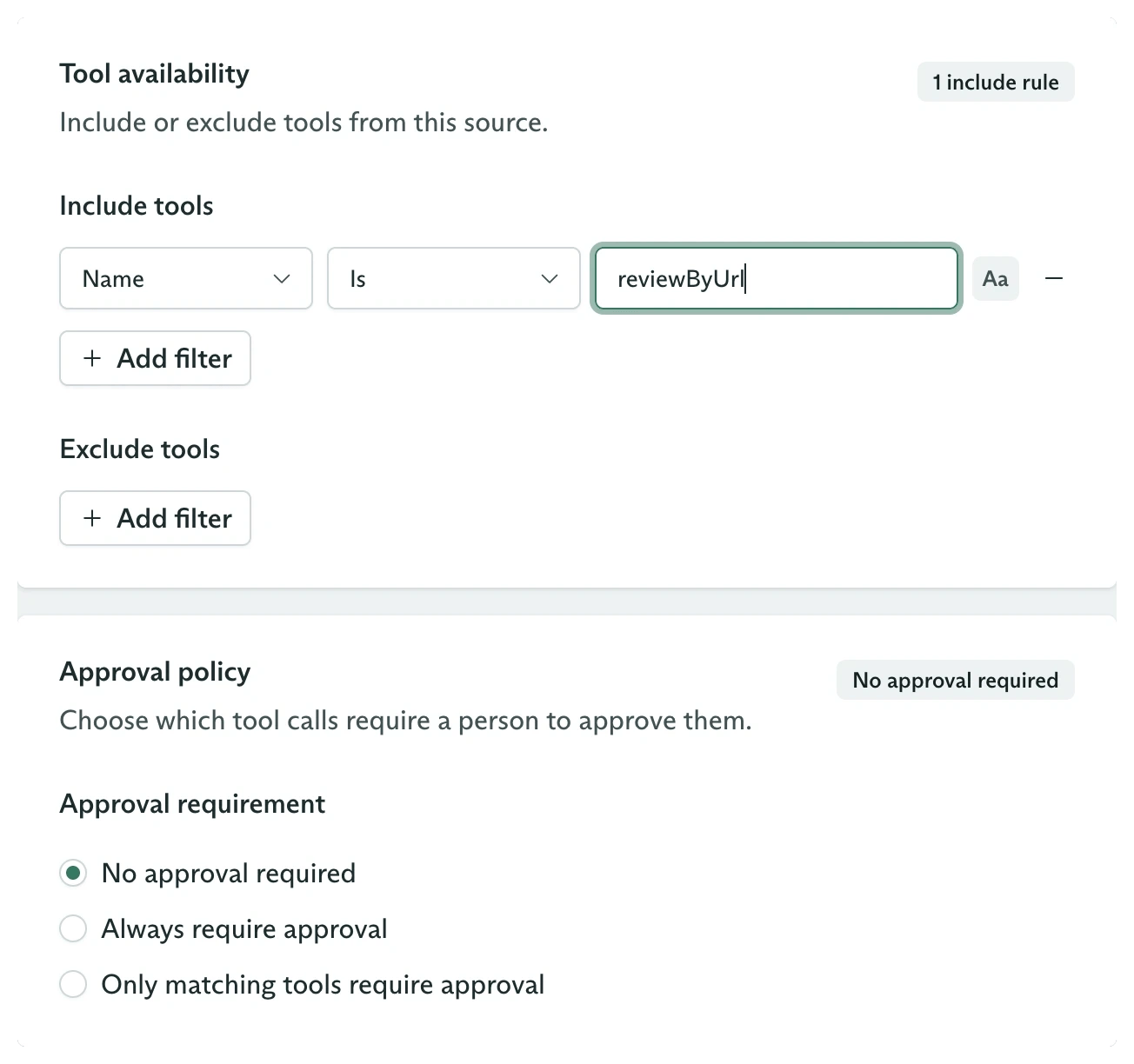 Regenerate the preview. It should report:
* Six tools found
* One available
* Five omitted
Include rules form the initial candidate set. Exclude rules remove tools from that set. A tool must pass both stages to become **Available**.
### Match all or any
Multiple rules use one top-level operator:
* **Match all** requires every rule to match the same tool.
* **Match any** requires at least one rule to match.
There is no nested boolean expression. When a policy needs grouping such as `(A and B) or C`, simplify the naming convention, use a regular expression, or split the source into separate tool sets.
Omitted tools remain visible in the dashboard and sync inventory, but agents never receive them. The sync count describes operations processed from the source, not only the tools left available.
## Require approval for the operation
Under **Approval requirement**, choose **Only matching tools require approval**. Add the same exact-name rule for `reviewByUrl`.
The three policies behave differently:
| Policy | Result |
| :--------------------------------------- | :-------------------------------------------- |
| **No approval required** | Available calls execute immediately |
| **Always require approval** | Every available call pauses |
| **Only matching tools require approval** | Only calls matching the approval filter pause |
Approval filters do not change availability. They set `requiresApproval` on matching tools during sync. In this example, the Tools tab shows `reviewByUrl` as **Available** and approval-required, while the other five operations remain **Omitted**.
Save the tool set and wait for its sync to complete before assigning it to an agent.
## Assign and dispatch
Assign the whole tool set to an agent variation. Use a prompt that calls `reviewByUrl` with the URL from the user, then publish the agent.
Dispatch a validation objective:
```typescript theme={null}
import Cadenya from '@cadenya/cadenya';
const client = new Cadenya({ apiKey: process.env['CADENYA_API_KEY'] });
const workspaceId = process.env['CADENYA_WORKSPACE_ID']!;
const agentId = process.env['CADENYA_AGENT_ID']!;
const objective = await client.objectives.create({
workspaceId,
agentId,
systemPromptData: {},
firstUserMessage:
'Validate https://petstore3.swagger.io/api/v3/openapi.json.',
});
```
The model can propose the call, but Cadenya does not send the HTTP request yet. The tool call enters `TOOL_CALL_STATUS_WAITING_FOR_APPROVAL`.
## Approve the paused call
Find waiting calls and approve the one your application reviewed:
```typescript theme={null}
const waiting = await client.objectives.toolCalls.list(
objective.metadata.id,
{
workspaceId,
status: 'TOOL_CALL_STATUS_WAITING_FOR_APPROVAL',
},
);
for await (const call of waiting) {
console.log(call.data.callable, call.data.arguments);
await client.objectives.toolCalls.approve(
objective.metadata.id,
call.metadata.id,
{ workspaceId },
);
}
```
Approving changes the call to `TOOL_CALL_STATUS_APPROVED`. Cadenya executes it, records the result, and lets the objective continue.
The vetted timeline contains:
```text theme={null}
toolCalled
→ toolApprovalRequested
→ toolApproved
→ toolResult
→ assistantMessage
```
Regenerate the preview. It should report:
* Six tools found
* One available
* Five omitted
Include rules form the initial candidate set. Exclude rules remove tools from that set. A tool must pass both stages to become **Available**.
### Match all or any
Multiple rules use one top-level operator:
* **Match all** requires every rule to match the same tool.
* **Match any** requires at least one rule to match.
There is no nested boolean expression. When a policy needs grouping such as `(A and B) or C`, simplify the naming convention, use a regular expression, or split the source into separate tool sets.
Omitted tools remain visible in the dashboard and sync inventory, but agents never receive them. The sync count describes operations processed from the source, not only the tools left available.
## Require approval for the operation
Under **Approval requirement**, choose **Only matching tools require approval**. Add the same exact-name rule for `reviewByUrl`.
The three policies behave differently:
| Policy | Result |
| :--------------------------------------- | :-------------------------------------------- |
| **No approval required** | Available calls execute immediately |
| **Always require approval** | Every available call pauses |
| **Only matching tools require approval** | Only calls matching the approval filter pause |
Approval filters do not change availability. They set `requiresApproval` on matching tools during sync. In this example, the Tools tab shows `reviewByUrl` as **Available** and approval-required, while the other five operations remain **Omitted**.
Save the tool set and wait for its sync to complete before assigning it to an agent.
## Assign and dispatch
Assign the whole tool set to an agent variation. Use a prompt that calls `reviewByUrl` with the URL from the user, then publish the agent.
Dispatch a validation objective:
```typescript theme={null}
import Cadenya from '@cadenya/cadenya';
const client = new Cadenya({ apiKey: process.env['CADENYA_API_KEY'] });
const workspaceId = process.env['CADENYA_WORKSPACE_ID']!;
const agentId = process.env['CADENYA_AGENT_ID']!;
const objective = await client.objectives.create({
workspaceId,
agentId,
systemPromptData: {},
firstUserMessage:
'Validate https://petstore3.swagger.io/api/v3/openapi.json.',
});
```
The model can propose the call, but Cadenya does not send the HTTP request yet. The tool call enters `TOOL_CALL_STATUS_WAITING_FOR_APPROVAL`.
## Approve the paused call
Find waiting calls and approve the one your application reviewed:
```typescript theme={null}
const waiting = await client.objectives.toolCalls.list(
objective.metadata.id,
{
workspaceId,
status: 'TOOL_CALL_STATUS_WAITING_FOR_APPROVAL',
},
);
for await (const call of waiting) {
console.log(call.data.callable, call.data.arguments);
await client.objectives.toolCalls.approve(
objective.metadata.id,
call.metadata.id,
{ workspaceId },
);
}
```
Approving changes the call to `TOOL_CALL_STATUS_APPROVED`. Cadenya executes it, records the result, and lets the objective continue.
The vetted timeline contains:
```text theme={null}
toolCalled
→ toolApprovalRequested
→ toolApproved
→ toolResult
→ assistantMessage
```
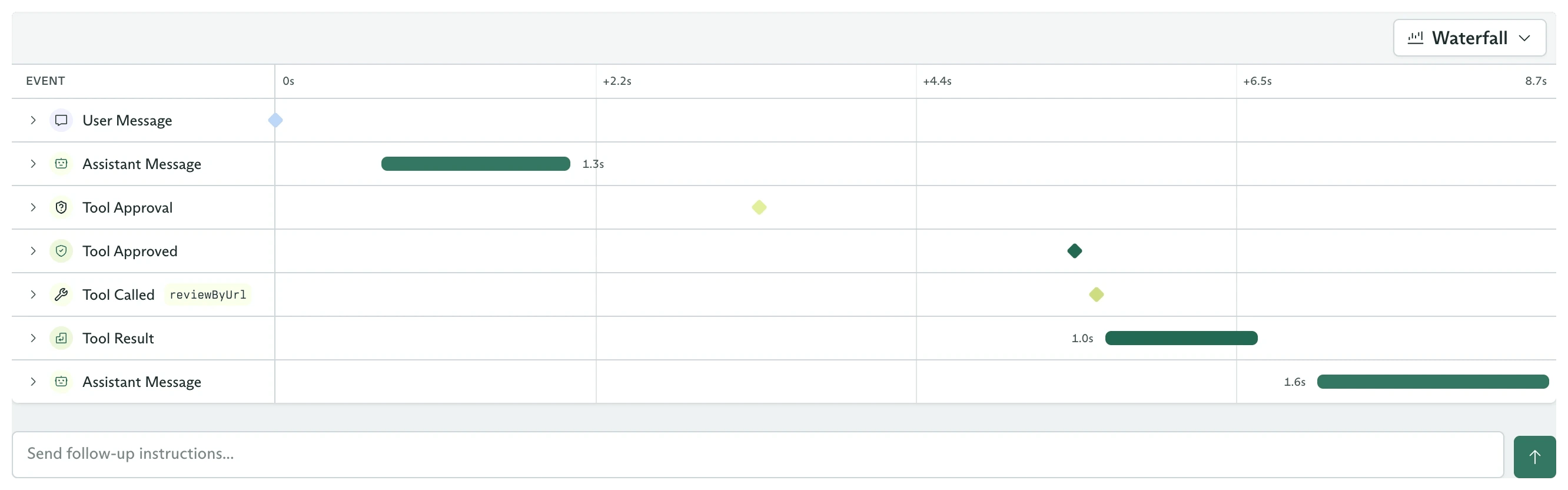 Approval is an authorization decision, not argument editing. If the proposed arguments are unsafe or incorrect, deny the call and include a memo telling the agent what to change.
## Deny and redirect
Use `deny` when the call should not execute:
```typescript theme={null}
await client.objectives.toolCalls.deny(
objectiveId,
toolCallId,
{
workspaceId,
memo: 'Do not validate external URLs. Ask the user for an approved host.',
},
);
```
The memo becomes context for the agent, which can choose a safer next action. A denial does not automatically fail the objective.
## Configure the same policies from the SDK
Availability and approval use the same filter shape:
```typescript theme={null}
const reviewFilter = {
operator: 'OPERATOR_AND' as const,
filters: [
{
attribute: 'ATTRIBUTE_NAME' as const,
matcher: {
type: 'exact' as const,
exact: 'reviewByUrl',
caseSensitive: false,
},
},
],
};
await client.toolSets.create({
workspaceId,
metadata: {
name: 'Approved OpenAPI validator',
externalId: 'approved-openapi-validator',
},
spec: {
adapter: {
type: 'openapi',
openapi: {
type: 'url',
url: 'https://validator.swagger.io/validator/openapi.json',
baseUrl: 'https://validator.swagger.io/validator',
includeTools: reviewFilter,
toolApprovals: {
type: 'only',
only: reviewFilter,
},
},
},
},
});
```
Use `{ type: 'always', always: true }` for `toolApprovals` when every available operation should pause.
You now have separate controls for what an agent can see and what a person must authorize before execution.
## Next steps
Turn the approval decision into an application workflow.
Load available tools progressively after filtering the source.
React to approval requests without polling.
Manage the complete tool set lifecycle.
Approval is an authorization decision, not argument editing. If the proposed arguments are unsafe or incorrect, deny the call and include a memo telling the agent what to change.
## Deny and redirect
Use `deny` when the call should not execute:
```typescript theme={null}
await client.objectives.toolCalls.deny(
objectiveId,
toolCallId,
{
workspaceId,
memo: 'Do not validate external URLs. Ask the user for an approved host.',
},
);
```
The memo becomes context for the agent, which can choose a safer next action. A denial does not automatically fail the objective.
## Configure the same policies from the SDK
Availability and approval use the same filter shape:
```typescript theme={null}
const reviewFilter = {
operator: 'OPERATOR_AND' as const,
filters: [
{
attribute: 'ATTRIBUTE_NAME' as const,
matcher: {
type: 'exact' as const,
exact: 'reviewByUrl',
caseSensitive: false,
},
},
],
};
await client.toolSets.create({
workspaceId,
metadata: {
name: 'Approved OpenAPI validator',
externalId: 'approved-openapi-validator',
},
spec: {
adapter: {
type: 'openapi',
openapi: {
type: 'url',
url: 'https://validator.swagger.io/validator/openapi.json',
baseUrl: 'https://validator.swagger.io/validator',
includeTools: reviewFilter,
toolApprovals: {
type: 'only',
only: reviewFilter,
},
},
},
},
});
```
Use `{ type: 'always', always: true }` for `toolApprovals` when every available operation should pause.
You now have separate controls for what an agent can see and what a person must authorize before execution.
## Next steps
Turn the approval decision into an application workflow.
Load available tools progressively after filtering the source.
React to approval requests without polling.
Manage the complete tool set lifecycle.