> ## Documentation Index
> Fetch the complete documentation index at: https://cadenya.com/docs/llms.txt
> Use this file to discover all available pages before exploring further.
# Run tools in your code
> Configure a Bare tool set in the dashboard, then supply each tool call's result from your application.
A Bare tool set gives your code the last word. Cadenya validates the arguments and pauses the tool call. Your application or a person performs the work, submits the result, and lets the objective continue.
This pattern keeps private services private. Cadenya never needs an inbound route to your network.
This guide uses the dashboard to create the tool set and define its tool. Code enters the flow only after an objective calls that tool and waits for content.
```mermaid theme={null}
---
config:
themeCSS: |
.actor {
fill: #347763 !important;
stroke: #165B41 !important;
}
text.actor, text.actor-box,
text.actor tspan, text.actor-box tspan {
fill: #FFFFFF !important;
}
.actor-line {
stroke: #739486 !important;
}
---
sequenceDiagram
participant A as Agent
participant C as Cadenya
participant W as Your application
participant S as Private service
A->>C: Call LookupOrder with an orderId
C->>C: Validate arguments and pause the objective
W->>C: List tool calls waiting for content
C-->>W: Return the tool call ID and arguments
W->>S: Look up the order
S-->>W: Return the order details
W->>C: Set the tool call content
C-->>A: Return the tool result
A->>A: Continue with the result
```
## What you need
* A Cadenya workspace where you can create tool sets.
* A published agent variation that can use the tool set.
* The Cadenya SDK, with your API key in `CADENYA_API_KEY` and workspace ID in `CADENYA_WORKSPACE_ID`.
* An internal order service URL in `ORDERS_API_URL` and its token in `ORDERS_API_KEY` for the content example.
## Choose a configuration
| Pattern | Configure | Use it when |
| :------------- | :---------------------------------------------------------------- | :------------------------------------------------------------------------------------------- |
| Human response | A Bare tool whose arguments describe the question | A person supplies text, a decision, or another result through your application |
| Private worker | A Bare tool whose parameter schema matches your internal function | The work runs inside a VPC, against a private database, or on a machine Cadenya cannot reach |
| Bounded wait | **Content timeout** on the Bare adapter | A missing response should stop waiting after a set number of seconds |
## Step 1: Create a Bare tool set
In the workspace sidebar:
1. Select **Tool Sets**, then click **Create Tool Set**.
2. Under **Adapter type**, select **Bare**.
3. Leave **Content timeout** blank for this lesson. To bound the wait, enter the number of seconds Cadenya should wait for content.
4. Click **Continue**.
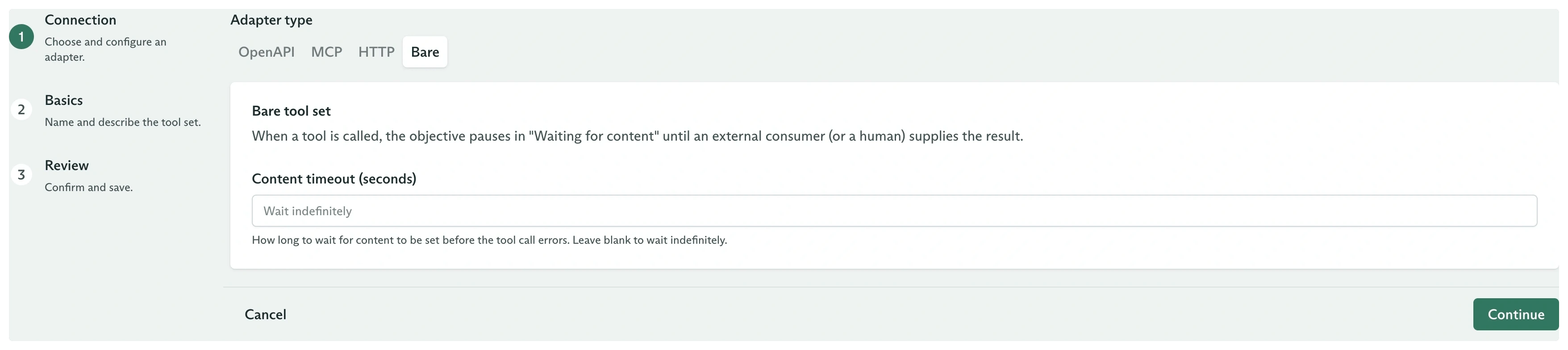 On **Basics**, enter:
* **Name:** `Private Orders`
* **Description:** `Look up order details through a private worker.`
Click **Continue**, confirm that the adapter is **Bare** on **Review**, then click **Create tool set**.
## Step 2: Define the tool
The new tool set starts empty. On its **Tools** tab, click **Add Tool**, then enter:
* **Name:** `lookup_order`
* **Description:** `Look up an order in the private order database.`
* **Requires Approval:** **Not required**
* **Tool Name:** `LookupOrder`
For **Parameters**, click **Convert a JSON payload to a schema** and paste an example call:
```json theme={null}
{
"orderId": "A-1007"
}
```
Click **Convert**, review the inferred schema, then click **Accept**.
On **Basics**, enter:
* **Name:** `Private Orders`
* **Description:** `Look up order details through a private worker.`
Click **Continue**, confirm that the adapter is **Bare** on **Review**, then click **Create tool set**.
## Step 2: Define the tool
The new tool set starts empty. On its **Tools** tab, click **Add Tool**, then enter:
* **Name:** `lookup_order`
* **Description:** `Look up an order in the private order database.`
* **Requires Approval:** **Not required**
* **Tool Name:** `LookupOrder`
For **Parameters**, click **Convert a JSON payload to a schema** and paste an example call:
```json theme={null}
{
"orderId": "A-1007"
}
```
Click **Convert**, review the inferred schema, then click **Accept**.
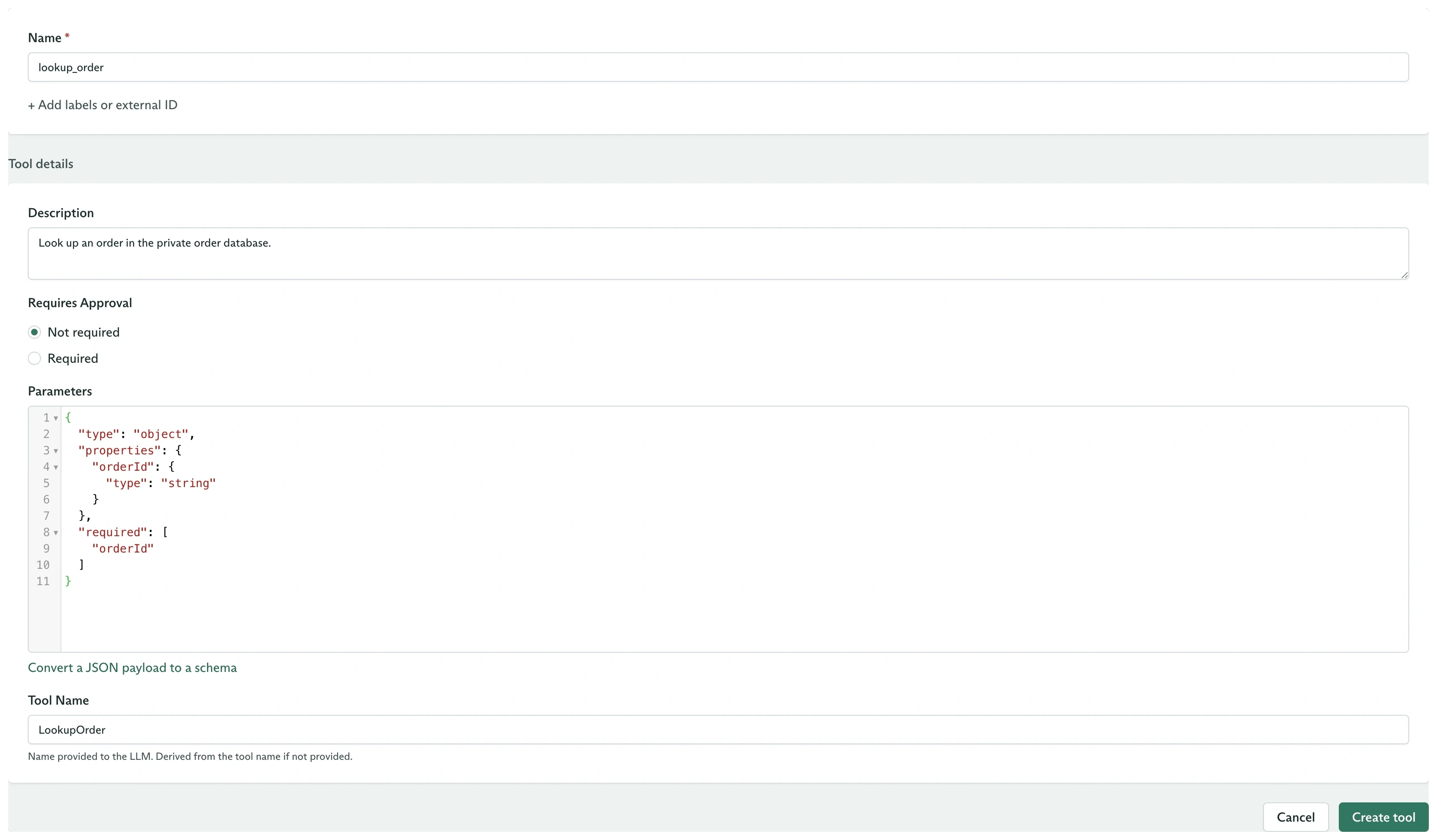 Click **Create tool**. The **Tools** tab now lists `lookup_order` as **Available**.
**Requires Approval** and Bare content solve different problems. Approval asks whether a call may proceed. Bare content supplies the call's result. A tool can use both, which puts approval before the wait for content.
## Step 3: Assign the set and run an objective
Assign `Private Orders` to an agent variation and publish the agent. Dispatch an objective that asks the agent to look up an order.
When the agent calls `LookupOrder`, the tool call enters `TOOL_CALL_EXECUTION_STATUS_WAITING_FOR_CONTENT`. The objective stays **Running** while it waits.
## Step 4: Send the content
The dashboard setup is complete. Your application now finds calls waiting for content, performs the private work, and sends each result to Cadenya:
```typescript theme={null}
import Cadenya from '@cadenya/cadenya';
const client = new Cadenya({ apiKey: process.env['CADENYA_API_KEY'] });
const workspaceId = process.env['CADENYA_WORKSPACE_ID']!;
const objectiveId = process.env['CADENYA_OBJECTIVE_ID']!;
async function lookupOrder(orderId: string) {
const url = new URL(`/orders/${encodeURIComponent(orderId)}`, process.env['ORDERS_API_URL']);
const response = await fetch(url, {
headers: { Authorization: `Bearer ${process.env['ORDERS_API_KEY']}` },
});
if (!response.ok) {
throw new Error(`Order lookup failed with status ${response.status}`);
}
return response.json();
}
const waiting = await client.objectives.toolCalls.list(objectiveId, {
workspaceId,
executionStatus: 'TOOL_CALL_EXECUTION_STATUS_WAITING_FOR_CONTENT',
});
for await (const call of waiting) {
const { orderId } = call.data.arguments as { orderId: string };
const result = await lookupOrder(orderId);
await client.objectives.toolCalls.setContent(
objectiveId,
call.metadata.id,
{
workspaceId,
content: [{ type: 'text', text: { text: JSON.stringify(result) } }],
},
);
}
```
Set `CADENYA_OBJECTIVE_ID` to the objective you dispatched. Replace `lookupOrder` with the work your application needs. It can call an internal service, query a database, wait for a person, or run local code.
The worker filters for `TOOL_CALL_EXECUTION_STATUS_WAITING_FOR_CONTENT`, reads the validated `orderId` argument, and passes the tool call ID to `setContent`. Once `setContent` succeeds, the agent receives the result and continues.
Content can contain text, image, and audio blocks. See [Set a Bare tool call's content](/docs/api-reference/objectiveservice/set-a-bare-tool-calls-content) for the complete block shapes and limits.
## Handle timeouts
If the application does not submit content before the configured **Content timeout**, Cadenya records a system result that says no content arrived and lets the objective continue.
Choose a value long enough for the runtime:
* A private worker often needs minutes.
* A person may need hours.
* A workflow that must finish within a request window needs a shorter bound.
## What you built
You created a hand-defined tool whose runtime stays in your application. The same pattern supports human answers, private service calls, local scripts, and other work that should not expose an HTTP or MCP endpoint.
Next, see the [tool sets SDK guide](/docs/guides/sdk/tool-sets#bare-and-http-your-code-is-the-tool) for the broader lifecycle and [stream objective events](/docs/api-reference/objectiveeventstreamsservice/stream-objective-events) when you want to react to waiting calls instead of polling.
Click **Create tool**. The **Tools** tab now lists `lookup_order` as **Available**.
**Requires Approval** and Bare content solve different problems. Approval asks whether a call may proceed. Bare content supplies the call's result. A tool can use both, which puts approval before the wait for content.
## Step 3: Assign the set and run an objective
Assign `Private Orders` to an agent variation and publish the agent. Dispatch an objective that asks the agent to look up an order.
When the agent calls `LookupOrder`, the tool call enters `TOOL_CALL_EXECUTION_STATUS_WAITING_FOR_CONTENT`. The objective stays **Running** while it waits.
## Step 4: Send the content
The dashboard setup is complete. Your application now finds calls waiting for content, performs the private work, and sends each result to Cadenya:
```typescript theme={null}
import Cadenya from '@cadenya/cadenya';
const client = new Cadenya({ apiKey: process.env['CADENYA_API_KEY'] });
const workspaceId = process.env['CADENYA_WORKSPACE_ID']!;
const objectiveId = process.env['CADENYA_OBJECTIVE_ID']!;
async function lookupOrder(orderId: string) {
const url = new URL(`/orders/${encodeURIComponent(orderId)}`, process.env['ORDERS_API_URL']);
const response = await fetch(url, {
headers: { Authorization: `Bearer ${process.env['ORDERS_API_KEY']}` },
});
if (!response.ok) {
throw new Error(`Order lookup failed with status ${response.status}`);
}
return response.json();
}
const waiting = await client.objectives.toolCalls.list(objectiveId, {
workspaceId,
executionStatus: 'TOOL_CALL_EXECUTION_STATUS_WAITING_FOR_CONTENT',
});
for await (const call of waiting) {
const { orderId } = call.data.arguments as { orderId: string };
const result = await lookupOrder(orderId);
await client.objectives.toolCalls.setContent(
objectiveId,
call.metadata.id,
{
workspaceId,
content: [{ type: 'text', text: { text: JSON.stringify(result) } }],
},
);
}
```
Set `CADENYA_OBJECTIVE_ID` to the objective you dispatched. Replace `lookupOrder` with the work your application needs. It can call an internal service, query a database, wait for a person, or run local code.
The worker filters for `TOOL_CALL_EXECUTION_STATUS_WAITING_FOR_CONTENT`, reads the validated `orderId` argument, and passes the tool call ID to `setContent`. Once `setContent` succeeds, the agent receives the result and continues.
Content can contain text, image, and audio blocks. See [Set a Bare tool call's content](/docs/api-reference/objectiveservice/set-a-bare-tool-calls-content) for the complete block shapes and limits.
## Handle timeouts
If the application does not submit content before the configured **Content timeout**, Cadenya records a system result that says no content arrived and lets the objective continue.
Choose a value long enough for the runtime:
* A private worker often needs minutes.
* A person may need hours.
* A workflow that must finish within a request window needs a shorter bound.
## What you built
You created a hand-defined tool whose runtime stays in your application. The same pattern supports human answers, private service calls, local scripts, and other work that should not expose an HTTP or MCP endpoint.
Next, see the [tool sets SDK guide](/docs/guides/sdk/tool-sets#bare-and-http-your-code-is-the-tool) for the broader lifecycle and [stream objective events](/docs/api-reference/objectiveeventstreamsservice/stream-objective-events) when you want to react to waiting calls instead of polling.