> ## Documentation Index
> Fetch the complete documentation index at: https://cadenya.com/docs/llms.txt
> Use this file to discover all available pages before exploring further.
# Run your first objective
> Create an objective in the dashboard, inspect its configuration snapshot and event timeline, continue the conversation, and dispatch the same task from code.
An objective is one task assigned to one published agent. Cadenya chooses a variation when the objective is created, snapshots the effective configuration, and records everything the agent does as an event.
This guide starts in the dashboard so you can see each input and result. The last section shows the same dispatch in TypeScript, Go, Ruby, and cURL.
## What you need
* A published agent with at least one variation.
* Either a **First User Message** for this run or a **First user message template** on every variation the objective can select.
* Values that satisfy the agent's system prompt data schema, when it defines one.
The [Quickstart](/docs/quickstart) builds a suitable Faker-backed agent from an empty workspace.
## Create the objective
Open **Objectives** from the sidebar and select **New Objective**.
Complete the first card:
| Field | What to enter |
| --------------------------- | ----------------------------------------------------------------------------------------------- |
| **Agent** | The published agent that should perform the task |
| **Variation** | Leave on **Agent default** to use the agent's selection mode, or choose one exact variation |
| **First User Message** | The task, such as `Create two attendee records with a name, email, company, city, and country.` |
| **System Prompt Data** | Optional JSON rendered into the variation's system prompt template |
| **First User Message Data** | Optional JSON rendered into the variation's first user message template |
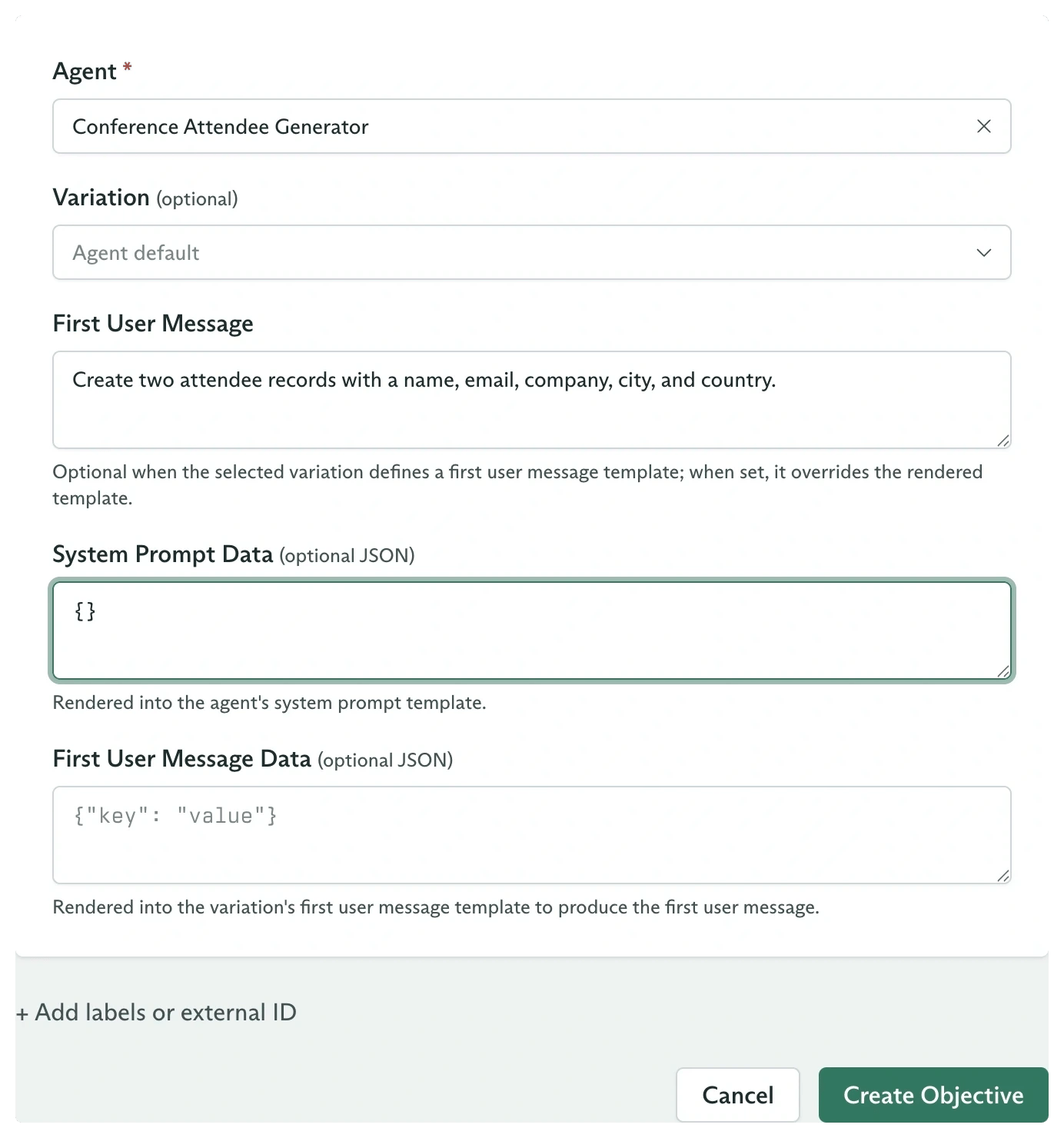 Two fields are conditional:
* **Episodic Key** appears when the selected agent has episodic memory enabled. Objectives with the same key share the agent's corresponding episodic memory layer.
* **Variation** is optional. Selecting one pins that variation. Leaving it empty applies the agent's Random or Feedback Driven selection mode at creation.
Expand **Add labels or external ID** when the run should carry an identifier from your system or routing labels for webhooks.
Select **Create Objective**. Cadenya opens the new objective immediately while execution continues in the background.
## Read the timeline
The **Timeline** tab is the durable history of the run. It starts with **User Message** and adds assistant messages, reasoning, tool activity, approvals, compaction, delegation, and terminal events as they occur.
Two fields are conditional:
* **Episodic Key** appears when the selected agent has episodic memory enabled. Objectives with the same key share the agent's corresponding episodic memory layer.
* **Variation** is optional. Selecting one pins that variation. Leaving it empty applies the agent's Random or Feedback Driven selection mode at creation.
Expand **Add labels or external ID** when the run should carry an identifier from your system or routing labels for webhooks.
Select **Create Objective**. Cadenya opens the new objective immediately while execution continues in the background.
## Read the timeline
The **Timeline** tab is the durable history of the run. It starts with **User Message** and adds assistant messages, reasoning, tool activity, approvals, compaction, delegation, and terminal events as they occur.
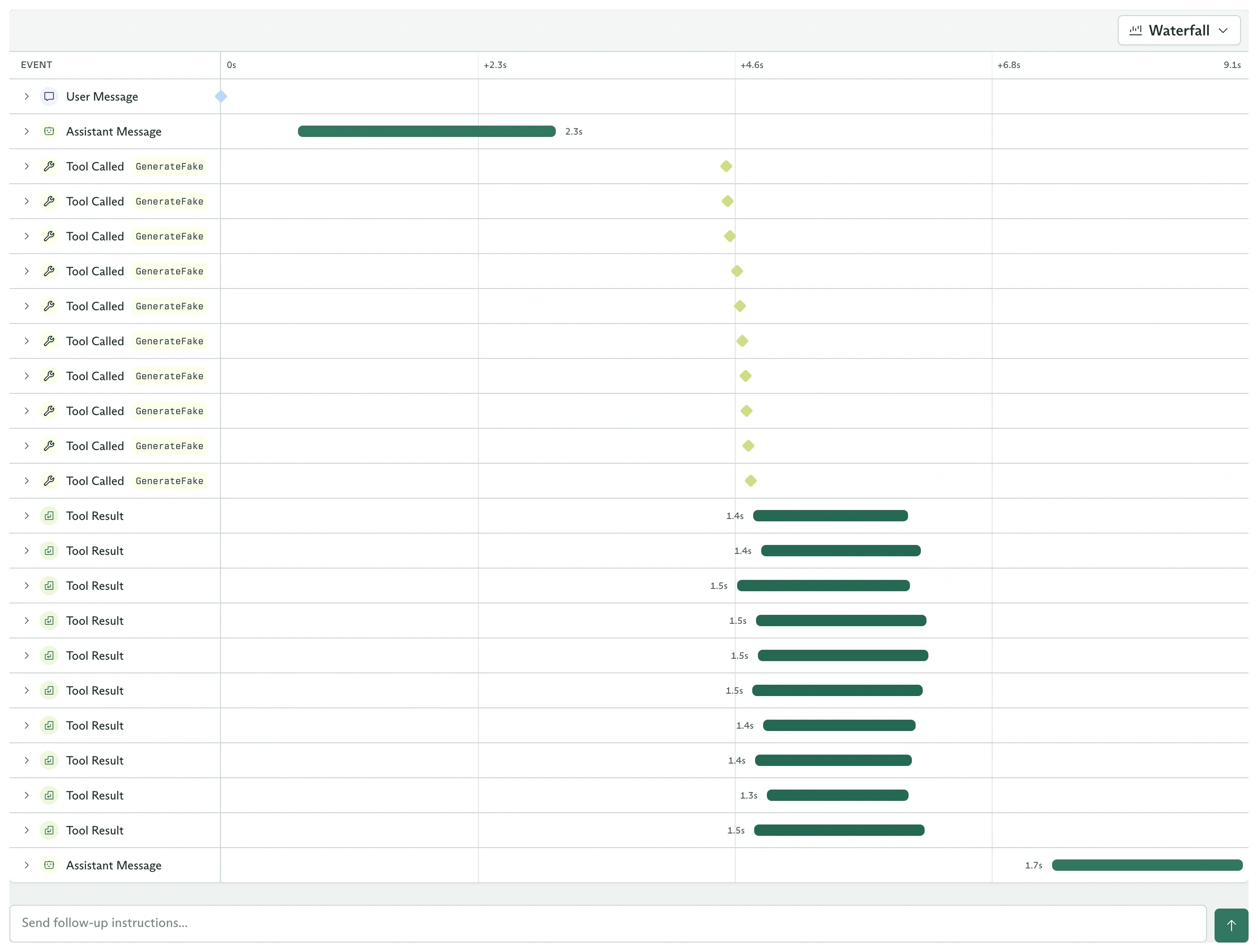 Use the view selector to switch between:
* **Timeline**, which presents the run as a conversation and expandable event cards.
* **Waterfall**, which plots event start times and durations on one axis.
The tabs beside it expose the same run from different angles:
| Tab | What it answers |
| ---------------------- | ---------------------------------------------------------------------------------------------- |
| **Tool Calls** | Which calls ran, their approval and execution states, arguments, results, and resolved secrets |
| **Loaded Tools** | The exact tool snapshot available to this objective |
| **Sub-Agents** | Child objectives spawned by the agent |
| **Webhook Deliveries** | Delivery attempts for this objective's events |
| **Context Windows** | Compaction boundaries and token usage |
| **Feedback** | Ratings and comments submitted for this run |
| **Debugger** | Tool-call debug logs |
The **Details** card records the snapshotted agent, variation, model, temperature, tool counts, and constraints. Editing the agent later does not change this objective.
## Understand the state
The status in **Details** moves through these states:
| State | Meaning |
| ------------- | ----------------------------------------------------------- |
| **Pending** | Accepted and waiting for execution |
| **Running** | The agent is processing a turn |
| **Waiting** | The turn ended and the objective can accept another message |
| **Finalized** | Structured output was produced; terminal |
| **Failed** | Execution failed; terminal |
| **Cancelled** | A caller stopped execution; terminal |
| **Timed Out** | The inactivity limit was reached; terminal |
An agent without structured output normally ends a turn in **Waiting**. That is a live conversation, not a terminal state.
## Continue a waiting objective
When the status is **Waiting**, enter another message in **Send follow-up instructions...** below the timeline and submit it. The objective returns to **Pending**, then **Running**, with its existing event history and configuration snapshot intact.
The follow-up contains only the new message. Secrets and prompt data are fixed at objective creation, so start a new objective when those inputs must change.
## Submit feedback
Open **Feedback** and use **Submit Feedback** after you can judge the result. The dashboard maps its five stars to API scores:
| Stars | Score |
| ----- | ------ |
| 1 | `-1.0` |
| 2 | `-0.5` |
| 3 | `0.0` |
| 4 | `0.5` |
| 5 | `1.0` |
Add a comment and select **Submit Feedback**. If the agent uses **Feedback Driven** selection, the score updates the posterior of the variation snapshotted on this objective. See [feedback and variation sampling](/docs/guides/agents/feedback-and-sampling) for the selection math.
Use the view selector to switch between:
* **Timeline**, which presents the run as a conversation and expandable event cards.
* **Waterfall**, which plots event start times and durations on one axis.
The tabs beside it expose the same run from different angles:
| Tab | What it answers |
| ---------------------- | ---------------------------------------------------------------------------------------------- |
| **Tool Calls** | Which calls ran, their approval and execution states, arguments, results, and resolved secrets |
| **Loaded Tools** | The exact tool snapshot available to this objective |
| **Sub-Agents** | Child objectives spawned by the agent |
| **Webhook Deliveries** | Delivery attempts for this objective's events |
| **Context Windows** | Compaction boundaries and token usage |
| **Feedback** | Ratings and comments submitted for this run |
| **Debugger** | Tool-call debug logs |
The **Details** card records the snapshotted agent, variation, model, temperature, tool counts, and constraints. Editing the agent later does not change this objective.
## Understand the state
The status in **Details** moves through these states:
| State | Meaning |
| ------------- | ----------------------------------------------------------- |
| **Pending** | Accepted and waiting for execution |
| **Running** | The agent is processing a turn |
| **Waiting** | The turn ended and the objective can accept another message |
| **Finalized** | Structured output was produced; terminal |
| **Failed** | Execution failed; terminal |
| **Cancelled** | A caller stopped execution; terminal |
| **Timed Out** | The inactivity limit was reached; terminal |
An agent without structured output normally ends a turn in **Waiting**. That is a live conversation, not a terminal state.
## Continue a waiting objective
When the status is **Waiting**, enter another message in **Send follow-up instructions...** below the timeline and submit it. The objective returns to **Pending**, then **Running**, with its existing event history and configuration snapshot intact.
The follow-up contains only the new message. Secrets and prompt data are fixed at objective creation, so start a new objective when those inputs must change.
## Submit feedback
Open **Feedback** and use **Submit Feedback** after you can judge the result. The dashboard maps its five stars to API scores:
| Stars | Score |
| ----- | ------ |
| 1 | `-1.0` |
| 2 | `-0.5` |
| 3 | `0.0` |
| 4 | `0.5` |
| 5 | `1.0` |
Add a comment and select **Submit Feedback**. If the agent uses **Feedback Driven** selection, the score updates the posterior of the variation snapshotted on this objective. See [feedback and variation sampling](/docs/guides/agents/feedback-and-sampling) for the selection math.
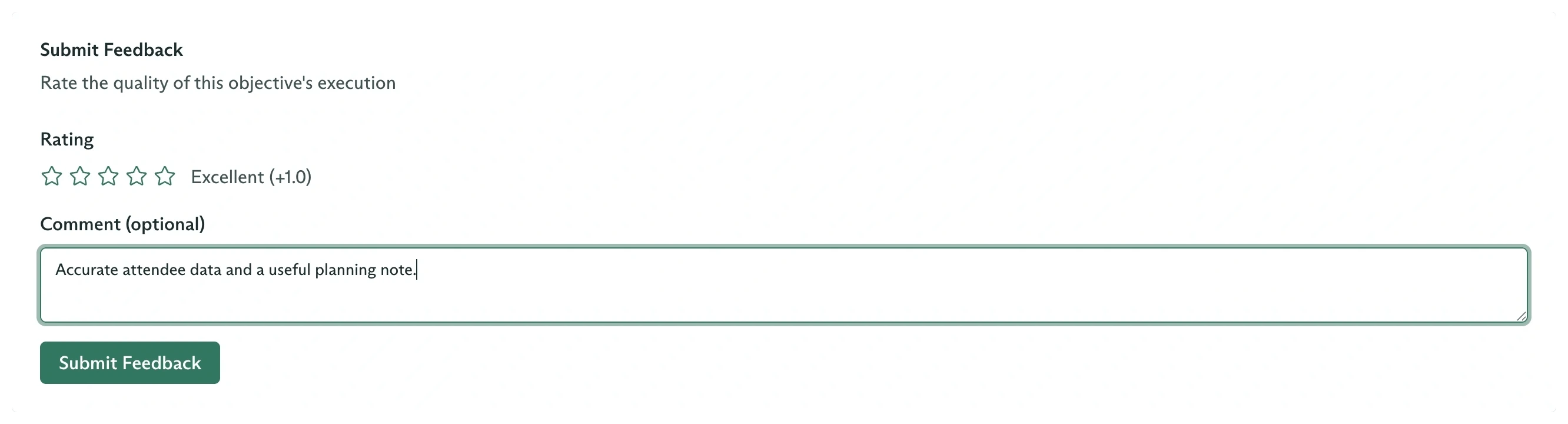 After submission, the rating appears under **Previous Feedback**.
## Dispatch from code
Set the agent identifier to either its Cadenya ID or an `external_id:` reference:
```bash theme={null}
export CADENYA_AGENT_ID='external_id:conference-attendee-generator'
```
Choose a language. Every example creates the same objective and prints its Cadenya ID.
```typescript TypeScript theme={null}
import Cadenya from '@cadenya/cadenya';
const client = new Cadenya({
apiKey: process.env['CADENYA_API_KEY'],
});
const objective = await client.objectives.create({
workspaceId: process.env['CADENYA_WORKSPACE_ID'],
agentId: process.env['CADENYA_AGENT_ID']!,
metadata: {
externalId: `ticket-${Date.now()}`,
labels: { source: 'docs' },
},
systemPromptData: {},
firstUserMessage:
'Create two attendee records with a name, email, company, city, and country.',
});
console.log(objective.metadata.id);
```
```go Go theme={null}
package main
import (
"context"
"fmt"
"os"
"go.cadenya.com/cadenya-go"
"go.cadenya.com/cadenya-go/option"
)
func main() {
client := cadenya.NewClient(
option.WithWorkspaceID(os.Getenv("CADENYA_WORKSPACE_ID")),
)
objective, err := client.Objectives.New(
context.Background(),
cadenya.ObjectiveNewParams{
AgentID: os.Getenv("CADENYA_AGENT_ID"),
SystemPromptData: map[string]any{},
FirstUserMessage: cadenya.String(
"Create two attendee records with a name, email, company, city, and country.",
),
},
)
if err != nil {
panic(err)
}
fmt.Println(objective.Metadata.ID)
}
```
```ruby Ruby theme={null}
require "cadenya"
client = Cadenya::Client.new(api_key: ENV.fetch("CADENYA_API_KEY"))
objective = client.objectives.create(
ENV.fetch("CADENYA_WORKSPACE_ID"),
agent_id: ENV.fetch("CADENYA_AGENT_ID"),
system_prompt_data: {},
first_user_message:
"Create two attendee records with a name, email, company, city, and country."
)
puts objective.metadata.id
```
```bash cURL theme={null}
curl "https://api.cadenya.com/v1/workspaces/${CADENYA_WORKSPACE_ID}/objectives" \
-H "Authorization: Bearer ${CADENYA_API_KEY}" \
-H "Content-Type: application/json" \
-d "{
\"agentId\": \"${CADENYA_AGENT_ID}\",
\"systemPromptData\": {},
\"firstUserMessage\": \"Create two attendee records with a name, email, company, city, and country.\"
}"
```
The response starts in `STATE_PENDING`. Open its ID under **Objectives**, or [stream its typed events](/docs/api-reference/objectiveeventstreamsservice/stream-objective-events) from your application.
Stream, continue, cancel, and score the objective in code.
Define a JSON Schema and finish objectives with machine-readable output.
Review a gated tool call in the dashboard or through your own webhook handler.
Understand snapshots, memory, tools, events, context windows, and terminal states.
After submission, the rating appears under **Previous Feedback**.
## Dispatch from code
Set the agent identifier to either its Cadenya ID or an `external_id:` reference:
```bash theme={null}
export CADENYA_AGENT_ID='external_id:conference-attendee-generator'
```
Choose a language. Every example creates the same objective and prints its Cadenya ID.
```typescript TypeScript theme={null}
import Cadenya from '@cadenya/cadenya';
const client = new Cadenya({
apiKey: process.env['CADENYA_API_KEY'],
});
const objective = await client.objectives.create({
workspaceId: process.env['CADENYA_WORKSPACE_ID'],
agentId: process.env['CADENYA_AGENT_ID']!,
metadata: {
externalId: `ticket-${Date.now()}`,
labels: { source: 'docs' },
},
systemPromptData: {},
firstUserMessage:
'Create two attendee records with a name, email, company, city, and country.',
});
console.log(objective.metadata.id);
```
```go Go theme={null}
package main
import (
"context"
"fmt"
"os"
"go.cadenya.com/cadenya-go"
"go.cadenya.com/cadenya-go/option"
)
func main() {
client := cadenya.NewClient(
option.WithWorkspaceID(os.Getenv("CADENYA_WORKSPACE_ID")),
)
objective, err := client.Objectives.New(
context.Background(),
cadenya.ObjectiveNewParams{
AgentID: os.Getenv("CADENYA_AGENT_ID"),
SystemPromptData: map[string]any{},
FirstUserMessage: cadenya.String(
"Create two attendee records with a name, email, company, city, and country.",
),
},
)
if err != nil {
panic(err)
}
fmt.Println(objective.Metadata.ID)
}
```
```ruby Ruby theme={null}
require "cadenya"
client = Cadenya::Client.new(api_key: ENV.fetch("CADENYA_API_KEY"))
objective = client.objectives.create(
ENV.fetch("CADENYA_WORKSPACE_ID"),
agent_id: ENV.fetch("CADENYA_AGENT_ID"),
system_prompt_data: {},
first_user_message:
"Create two attendee records with a name, email, company, city, and country."
)
puts objective.metadata.id
```
```bash cURL theme={null}
curl "https://api.cadenya.com/v1/workspaces/${CADENYA_WORKSPACE_ID}/objectives" \
-H "Authorization: Bearer ${CADENYA_API_KEY}" \
-H "Content-Type: application/json" \
-d "{
\"agentId\": \"${CADENYA_AGENT_ID}\",
\"systemPromptData\": {},
\"firstUserMessage\": \"Create two attendee records with a name, email, company, city, and country.\"
}"
```
The response starts in `STATE_PENDING`. Open its ID under **Objectives**, or [stream its typed events](/docs/api-reference/objectiveeventstreamsservice/stream-objective-events) from your application.
Stream, continue, cancel, and score the objective in code.
Define a JSON Schema and finish objectives with machine-readable output.
Review a gated tool call in the dashboard or through your own webhook handler.
Understand snapshots, memory, tools, events, context windows, and terminal states.